
Customized HPC env#
For some analysis where you need more specialized libraries you can create you own environment. Here, you will find instructions about how to install a customized environment in CSC’s Puhti supercomputer using a containerized approach.
Note
The following assumes that you have access to CSC Finland’s computing resources. In case you do not have access to CSC’s resources, you can still install all the required Python libraries used in the lessons by installing the environment.yml using mamba/micromamba/miniconda package managers. If you are new to Python’s package managers, you can learn more from here.
Log in to Puhti#
The first step to start creating your own space for High Performance Computing (HPC) is to log in in the CSC Puhti supercomputer.
CSC Puhti!
To log in to the web interface of Puhti supercomputer you need a CSC account or HAKA credentials.
Directories overview#
You will find three different spaces in the Diretory. Each of them can be used in different needs due to its capacity.
home with 10 GB capacity for personal files
projappl with 50 GB capacity for intermediate processes
scratch with 1 TB capacity for big output
We will proceed using projappl to install our personal environment. Note! We will use projappl just in case the disk scratch is cleaned up. In this case you will not lose your environment and no need to install it again.
Create your personal folder#
Once you are logged in you will see the User Interface of Puhti that shows the Apps you can use with HPC (Figure 1). We are going to install a containerized Python environment in our projappl directory that later on will be connected to Jupyter Lab.
Start opening the Home Directory icon and find the projappl Directory.

Figure 1. Puhti - User Interface#
Once you have opened the projappl Directory, in the left side, you will see the code of your project like project_200xxxx in two different Disk section like projappl and scratch. You should know that the scratch Disk must be used temporary because it has a regular clean up (every 180 days) meanwhile the projappl Disk has no clean up. In the projappl Disk the capacity is 50GiB and in the scratch Disk the capacity is 1TiB. You can read more about the Disk partition in CSC Disk areas. For the lesson, use projappl.
Start creating a new folder called GIT-HPC (Figure 2).

Figure 2. Puhti - projappl Directory personal set up#
Clone the repository#
Once you have your folder ready it is time to clone the repository with the needed material like the coding Notebooks and the environment.yml file that we will use to creating our environment. Take a look in the menu on top you have the option >_ Open in Terminal like in Figure 3.
Open your folder in terminal.
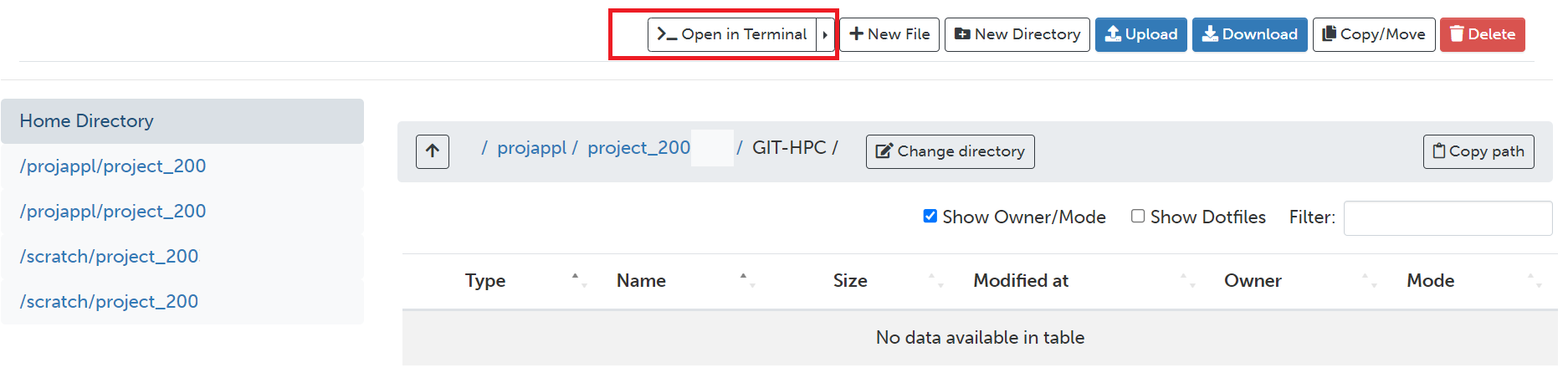
Figure 3. Puhti - Home Directory and Open in Terminal button#
Then, you will have a view of the terminal like in Figure 4. It will contain your new folder as a directory and your user log in.
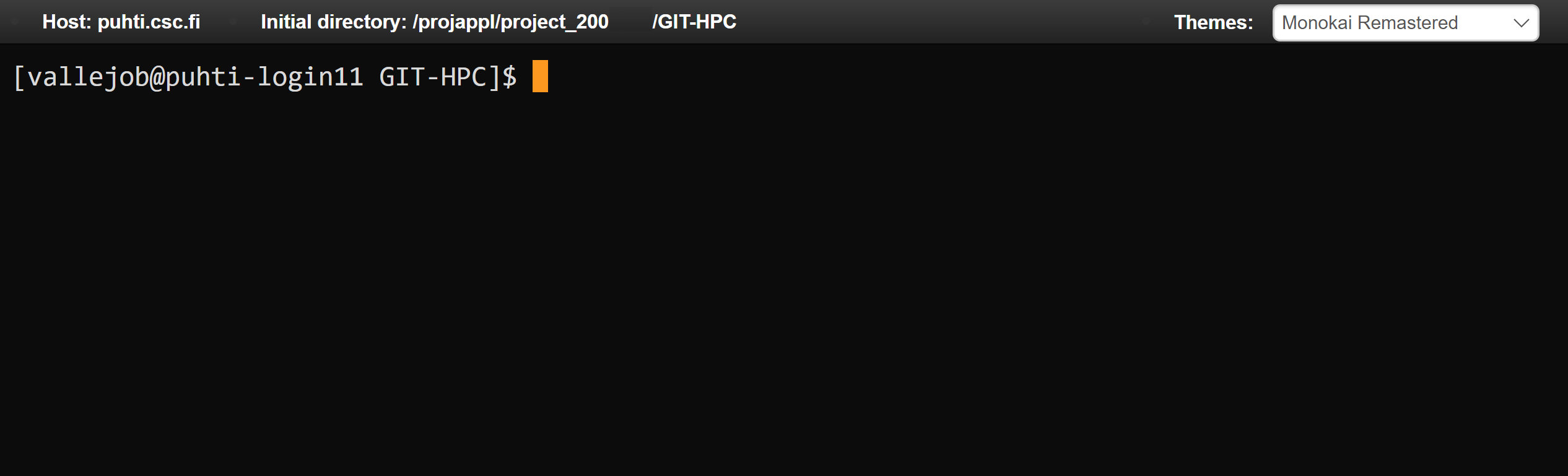
Figure 4. Puhti - Terminal#
We will clone the Repository in Puhti using Git. Copy and paste in your open terminal the next line (ommit the symbol $):
$ git clone https://github.com/AaltoGIS/GeoHPC.git
It should be like in Figure 5.

Figure 5. Puhti - Clone the repository using terminal#
You can also explore a bit the repository on GitHub here:
Once the Repository is cloned it should be abvailable in your Directory. You can check using the next command:
$ ls
If you are willing to know more about Linux commands you can check in the Linux commands from CSC documention.
Finally you can clear the terminal (optionally) using the command:
$ clear
Enable Tykky module#
The Tykky module is a container wrapper that helps to install software in HPC. It can be used to containerize a conda environment using an environment.yml file. We will activate the Tykky module and install a customized environment that we will use further with our notebooks.
Enable Tykky module:
$ module add tykky
Be sure that you have added Tykky using module list, it will tell like in Figure 6.
$ module list

Figure 6. Puhti - Modules#
Containerize Python environment#
We will start creating a new folder called env_container where we will containerize our Python environment. Simply, use the terminal and the next command line:
$ mkdir env_container
You will notice that now you have a new folder like in Figure 7.
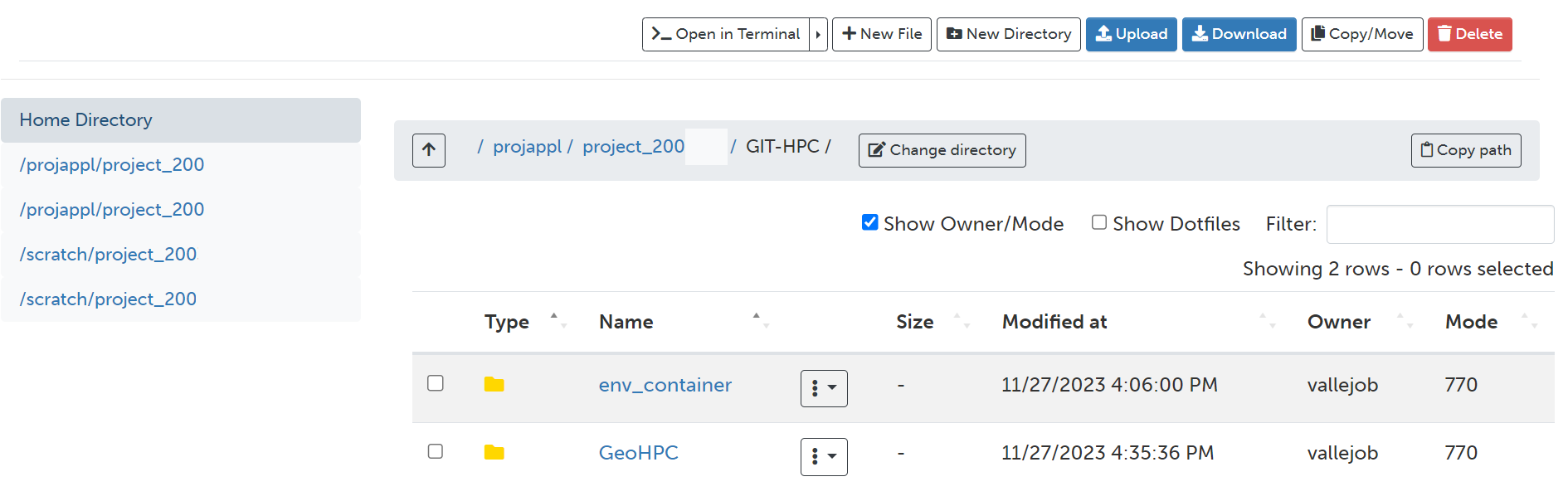
Figure 7. Puhti - A new folder for environment#
Now, we will containerize our environment using tykky. We need to specify two paths: 1) the directory where you will containerize the environment, and 2) the environment.yml file path.
The command we will use has the form conda-containerize new –prefix {directory} {environment.yml}
Our newly created folder env_container and the environment file is located in the folder env in our cloned repository. It is recommended to create the containerized environment outside the git folder GeoHPC so it is not compromised in case you need update or delete the folder then the environment is not compromised.
$ conda-containerize new --mamba --prefix env_container GeoHPC/env/environment.yml
Alternative without mamba (might be slower):
$ conda-containerize new --prefix env_container GeoHPC/env/environment.yml
Once the environment is installed you will see the message Done. This installation process might take approximately 15 minutes. Your terminal might give a message like in Figure 9.

Figure 8. Puhti - Environment containerized using tykky#
If everything looks like this so far you have installed successfully a customized Python environment in HPC. In the next page you will learn how to use this environment with Jupyter Notebooks and HPC resources.
Activate your environment (optional)#
You can use the next command (be sure you replace 200xxxx with your project number) to activate your environment and run scripts:
$ export PATH="/projappl/project_200xxxx/GIT-HPC/env_container/bin:$PATH"
Set up a Jupyter Notebook#
To access the JupyterLab application you can simply navigate to the User Interface menu in the Puhti dashboard or opening the Apps menu in the upper menu. If are logged in you can access to the dashboard using this link:
CSC Puhti dashboard!
To access Puhti dashboard you need to log in with a CSC account or HAKA credentials.
Simply, to start the JupyterLab click on the Jupyter button, like in Figure 9.
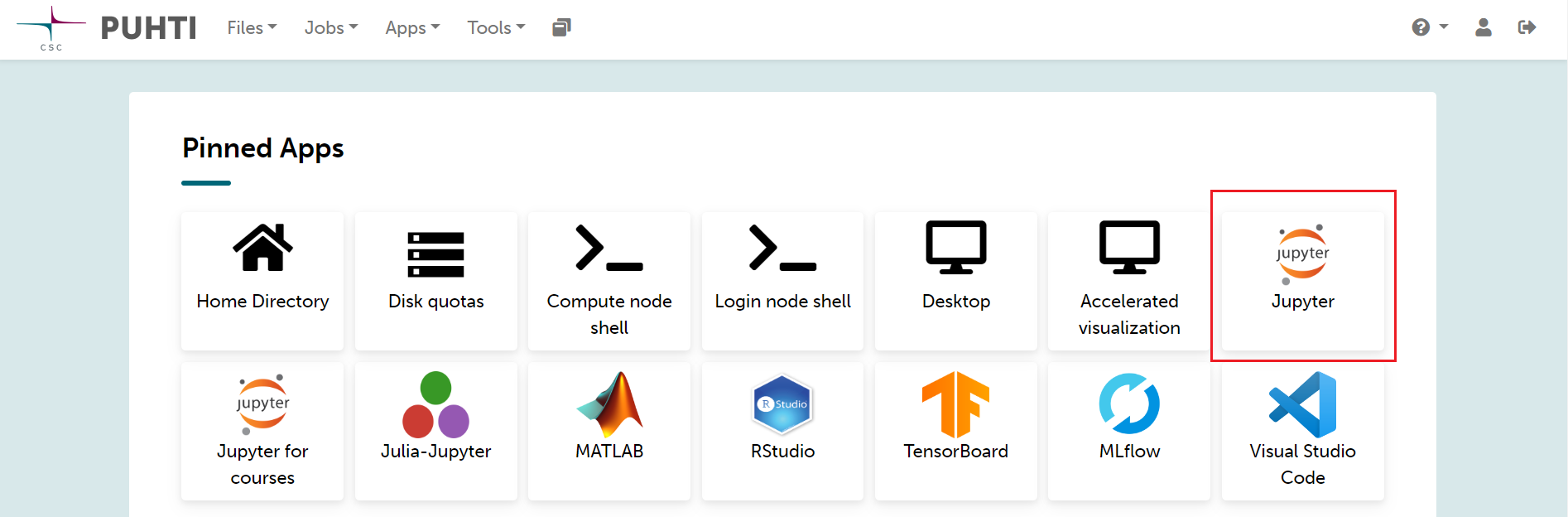
Figure 9. Puhti - Dashboard and Jupyter#
Then, you will see how the Jupyter session starts where you can set up the resources for your Jupyter Notebook. Be sure you have selected your own project like project_200xxxx. In this case, we are using partition interactive which has maximum 8 cores which is enough for our need. If you are willing to know more about the partitions find it in the Puhti Partitions Documentation.
For our parameters we will reserve 8 cores, 32 GB of processing memory, 60 GB of local disk, and 2 hours of availability, as an example. Your resources for now should look like Figure 10. Be sure that you are using your resources personally.
Note
If more people is sharing resources this configuration is not optimal and you must decrease resources.

Figure 10. Puhti - Jupyter configuration#
If you continue scrolling down you will find the Settings section. Under the Python parameter you should choose Custom Path. Then, in the Custom Python interpreter you should add the directory of your installed environment container.
Copy and paste the location of the environment from here (be sure you replace 200xxxx with your project number):
/projappl/project_200xxxx/GIT-HPC/env_container/bin/python
For the Working directory it is recommended to use the disk scratch especially if you plan to write a large amount of results.
The Settings section might look like Figure 11.

Figure 11. Puhti - Jupyter and Custom Python interpreter#
Finally, press the Launch button. You will see the session is launching untill it confirms it is Running. It will look like Figure 12.
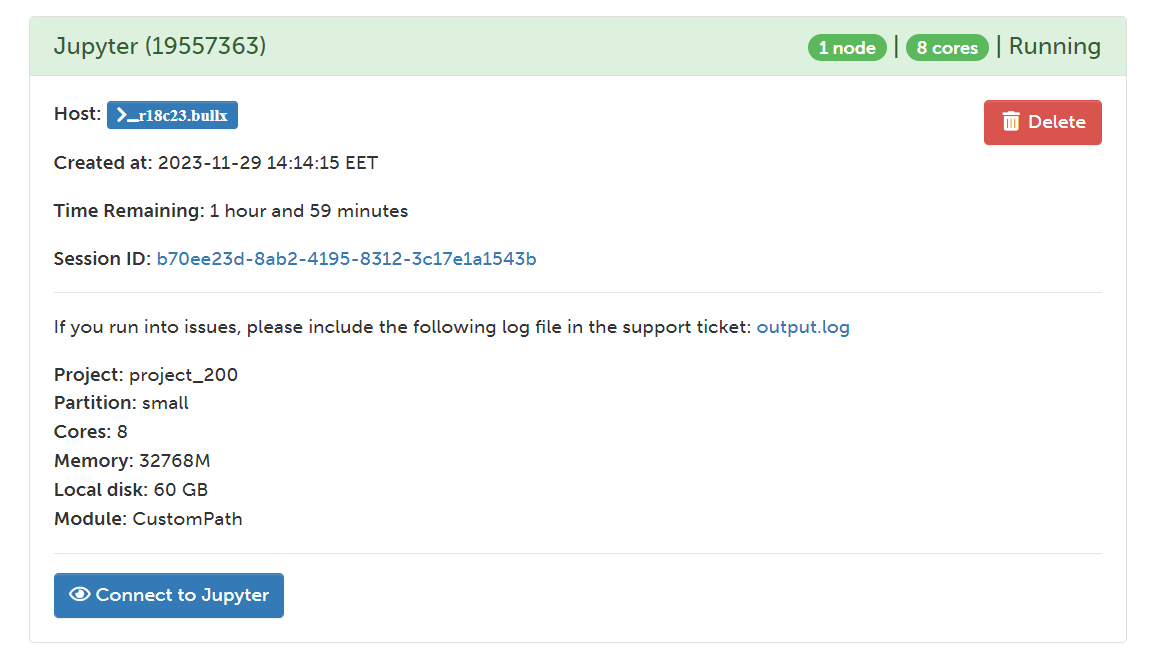
Figure 12. Puhti - Jupyter and Custom Python interpreter#
Then, press the button Connect to Jupyter and Jupyter Lab will open.
Find the Lessons in the cloned repository under:
/GIT-HPC/GeoHPC/source/lessons
The Launcher menu and Directory should look like Figure 13.
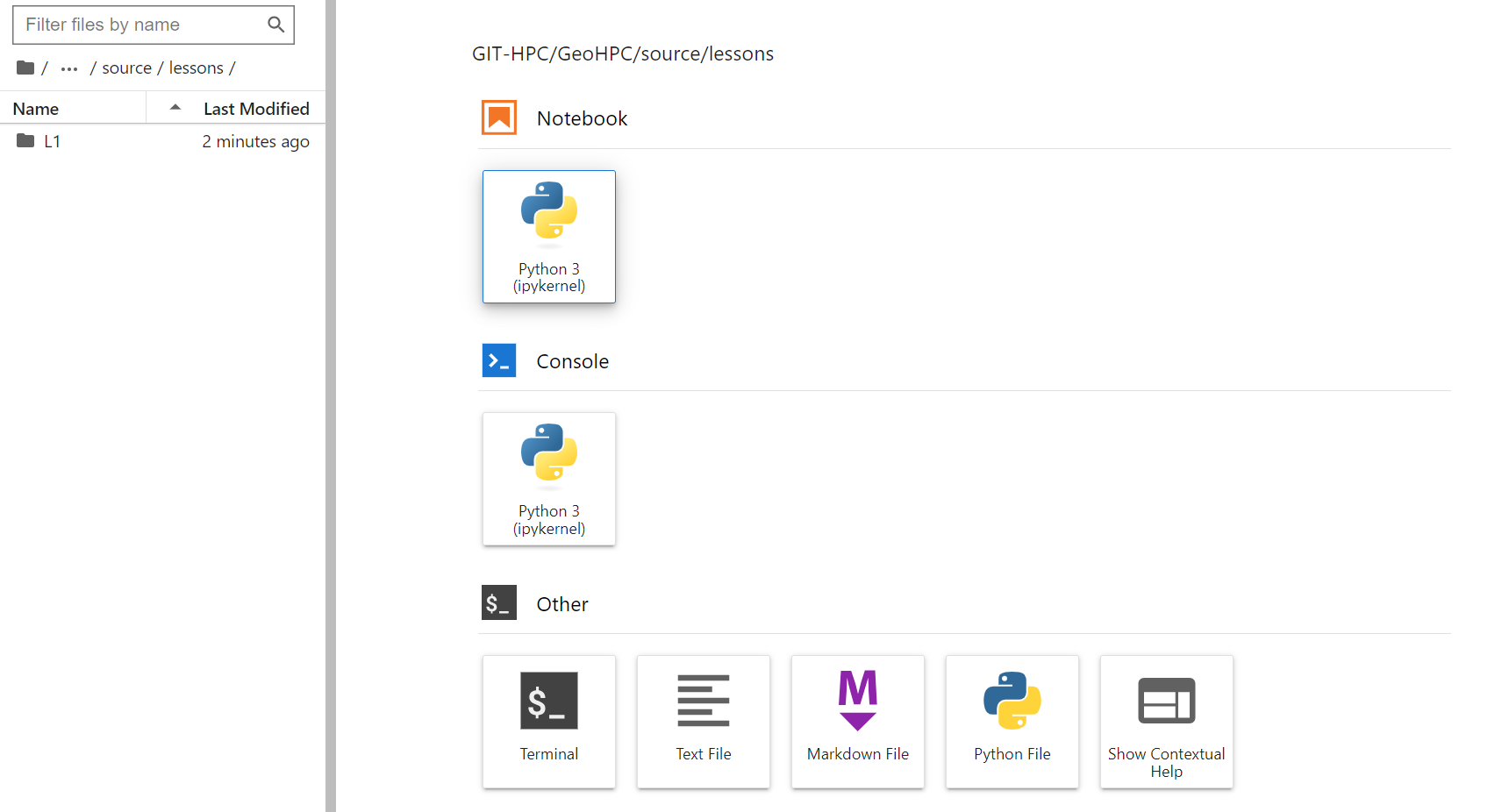
Figure 13. Puhti - Jupyter Lab and Launcher in lessons directory#
The Jupyter Notebooks for every lessons are in every enumerated folder. For example, the notebook for lesson 1 in L1, and so on. The notebook name contains simply keywords of the lesson like Shortest Path.
Open the Jupyter Notebook of Lesson 1 from:
/GIT-HPC/GeoHPC/source/lessons/L1/01_ShortestPath-Parallelization.ipynb
If you have reached until here you are able to start the Lesson 1 using HPC resources and a customized environment container. Follow up the instruction in the Jupyter Notebook.
Happy coding!.